How to get rid of annoying mobile ads on your Android Phone

Posted by Unknown Rabu, 12 Desember 2012 0 komentar
Sometimes when you try to download android apps from Google play app store or play downloader games like Angle Bird, they sometimes push annoying ads to your smartphone, and you find it really boring that you want to remove all the annoying ads on your android device. But how to get rid of these annoying mobile ads on Android Phone?
annoying mobile ads on Android Phone
Being a long android lover, I have discovered a list of good tips and powerful apps for you here. If you have the same problem, Follow the Tutorials to have a try and you will find it really useful.

1. Download free app called AirPush Detector

AirPush Detector is the app that detects other installed applications to see which apps appear to use notification ad frameworks and users can easily uninstall them.

The app can't block ads, but at least it can tell you which apps are causing them. So you must uninstall the app to stop the ads.

Now for the trick
  • After you've detected and deleted the apps which push ads, head to the Google Play Store.
  • Once inside the Play Store, tap on Settings.
  • Inside Settings, uncheck "Google AdMob Ads”, this will make sure that you will no longer receive targeted ads from Google.
Apart from AirPush Detector, there are similar apps in Google Play Store like Adblock Plus or AppBrain Ad Detector.

2. If your phone is rooted, you can try AdFree and AdAway. Both of the apps are free.
AdFree removes most ads in the browser and other apps. It does this by nullifying requests to known host names in the system hosts file, and AdAway is a similar app like AdFree.
3. To some extent, in my eyes, the ads are there to support developer to keep Develop innovation product. If you really want to remove them, the easiest way is to use your phone offline whenever you are using the add supported app.

Baca Selengkapnya ....

Sound Search for Google Play widget, now available on Google Play

Posted by Unknown 0 komentar
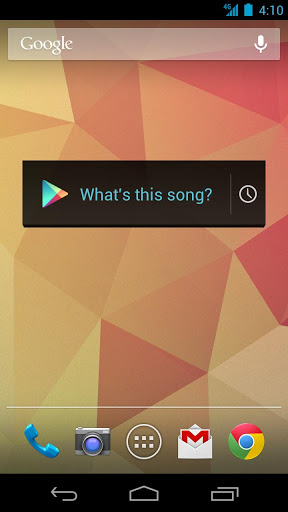
“What's this song?” Starting today, the Sound Search for Google Play widget is available to download from the Play store, so you can start identifying music playing around you, directly from your Android device’s homescreen.


Sometimes, you hear a song you like while you’re out and about but don’t want to download it right at that moment. The Sound Search widget syncs across all of your devices, so that song you recognized with your phone in the coffee shop can be quickly purchased from your tablet at home.

For devices running Android 4.2, you can add the widget directly to your device’s lockscreen, letting you recognize songs without even unlocking your phone, making it even easier for you to catch that song at the club.

The Sound Search for Google Play widget is available on Google Play for devices in the U.S. running Android 4.0 and above. After you’ve installed it, go to the widget picker and drag the Sound Search widget onto your homescreen. You can click on the widget at any time to start recognizing music around you.

Posted by Annie Chen, Software Engineer

Baca Selengkapnya ....

New in Google Currents: Scan through your favorite categories, editions and breaking news

Posted by Unknown 0 komentar
Keeping up on the news out there can be overwhelming. That's where Google Currents comes in—an app that allows you to discover, share and read your favorite news outlets, blogs and online magazines (what we together refer to as “editions”) on your smartphone or tablet—even when you’re offline. Currents is filled with great editions like The Los Angeles Times, CBS Sports, Android Central, The Guardian, Shortlist, and Forbes. Today, we’re revamping Currents to make it even easier to scan through all your favorite categories and specific editions with just the swipe of a finger. And, we’re using some of the technology behind Search to bring you breaking stories on those celebrity scandals, that fiscal cliff negotiation or hottest holiday gift.

Scan through categories 
We’re now grouping editions into categories to help you keep track of your existing subscriptions and discover new ones. Check out editions related to your interests through categories like Entertainment, Sports, Lifestyle and more. All of your content will be grouped in these categories, accessible from a sidebar. And you can organize your editions in each category with favorites on top.

We’ve also made it easy to quickly browse through top articles from all your favorite editions in a category—just swipe horizontally. If you subscribe to more than a dozen News editions like The Atlantic, ABC News and The Telegraph, you can quickly swipe through the entire category and dive into editions with articles of interest.


Scan through editions 
We’ve also made it easier to scan headlines in a particular edition—just swipe vertically. Want to see what’s new in Popular Science? Just swipe through through the headlines. After you view a story we’ll mark it as read, so it’s easier to see new content each time you use Currents.


Scan through breaking stories 
To help you stay up-to-date with the latest news, Google Currents now uses some of the technology behind Search to deliver the hottest breaking stories in categories such as World, Entertainment, Sports, Science and more. You’ll find new articles from hot topics that interest you, while discovering existing Currents editions you can subscribe to. Breaking stories are customized to your country and language—so we’ll only show you relevant news.


Currents optimizes editions to look great on whatever type of device you're using. Now articles shine, with larger images and layouts that are intelligently optimized for your device, whether you're on a phone or a tablet. Check out some of our newest featured partners like Cars.com, Voice of America News and New Scientist.

Back in April we expanded Google Currents internationally. Since then millions of readers around the world have downloaded Currents, reading over 700 publisher editions and tens of thousands of self-produced editions. The updated app is now available for download on Google Play and coming soon to iOS. We hope that today’s updates make keeping up with the latest news fast, easy and fun no matter where you are or what device you’re using.

Posted by Mussie Shore, Group Product Manager

Baca Selengkapnya ....

How to update Samsung Galaxy S3 to Android 4.1.2 Jelly Bean

Posted by Unknown Selasa, 11 Desember 2012 0 komentar
Good news to all Samsung galaxy s3 users, the international version of Samsung galaxy s3, which have been the world’s best-selling smartphone, now already received the much anticipated Android 4.1.2 Jelly Bean update over-the-air. Many major national carriers has released Android Jelly for the device, and other Carrier-branded versions like Verizon Wireless should be able to receive the update soon as Samsung is railroading updates for its devices. But some only offer an update that must completed via Samsung Kies software and is not offered over the air.


The new Android 4.12 Jelly Bean Update brings a list of amazing features now only located in Samsung Galaxy Note 2 to Samsung S3, like highly-anticipated Multi View multitasking system, Smart Rotation function , camera filters, low-light photo mode, an easy mode and so on. For some people you may find it is difficult for you to update or wait any longer. So here I will show you How to update Android 4.1 Jelly Bean on Galaxy S3 immediately.

Pre-requisites 
  1. Be sure to backup your data before starting the update
  2. Make sure your battery is at least 50% charged.
  3. Make sure that you have install Kies software on the computer, and if you don't have Kies, you can download it from Samsung website.
For international version: 

If the software update didn’t popped up in the notifications area, you can update your Samsung Galaxy S3 to Android 4.1.2 Jelly Bean by connecting the terminal to Kies or OTA, by manually checking for the update for the latter method. Just go to Settings > About Device > Software Update > Check for Updates and see whether the new firmware has rolled out for your device.

Here's How to Update Your AT&T Samsung Galaxy S III to Android 4.1 Jelly Bean
  • Connect your Samsung Galaxy S III to your PC or laptop using the supplied USB cable. Ensure that Kies recognizes your device by looking in the upper section of the left-bar navigation menu. Your device should be listed.
  • Kies Device Once Kies recognizes the device you will see a screen stating new firmware is available.
  • Click Update.
  • Read through the Caution pop-up and, if you agree, click to populate the I have read all of the above information checkbox.
  • Read the Allow saving of information statement and select Allow saving or Proceed without saving and then click Start upgrade.
  • After a few minutes, Kies will then begin transferring the firmware binary to the device.
  • Then after a while the upgrade is completed.
  • If completed a data backup from your device to Kies prior to performing the update, you can now restore that data back to the device under the new Jelly Bean operating system
Here is another method I have find for you if you can’t wait the update anymore, the article which show you how to manually install Samsung Galaxy S3 Android 4.1.2 Jelly Bean update from website thedroidguy.com. Of course, this is just for people who are willing to take the risk because manual updating is not always safe for your device. I have not try this method to find whether it is safe for your smartphone so just be careful. If you are interested in, just click the link to view.

Baca Selengkapnya ....

How to Control Your Computer with Your Android Phone or iPhone

Posted by Unknown Senin, 10 Desember 2012 0 komentar
For most people, there must have been countless times when you have settled down on the sofa to watch a film but less than a minute you want to take a nap as you feel tired, at that time you may feel in trouble to pause from the comfort of your sofa, So want to pause just on the sofa? And sometime on the way to work, you suddenly find that you have leave some important documents at home so you need Email the forgotten file from your home to office. What we can do when face these problem? Can we control computers with our android phone or iPhone ?

So with the popularity of smartphone, whether iPhone or Android phones, there are a list of apps that can make it happen. With these apps, you can control your computer by your phone in remote. Here is a look at some of the best tools for android phone and iPhone. Just check one you like most.

Android
TeamViewer is the incredibly useful app for remote access, which enables you to control your PC or Mac from your Android device no matter where you are and you can also benefit from gaining access to your private home computer to edit documents or use particular software while you are on the road.

TeamViewer
After install the client software, you need to use a short numerical code and password to gain access to your PC/Mac from your Android phone. You can transfer files between computer and mobile too, and the app works over 3G and 4G as well as Wi-Fi.

Watch the video Tutorial or this article to help you if you have a problem to start use this app.


PocketCloud Remote RDP / VNC is a similar powerful program that let users control Remote desktop access to Windows and Mac OS from Android device. And PocketCloud Remote Desktop Pro version are also provided, at a price of $14.99, which let you Access your files, pictures, and applications like Outlook, Word, Photoshop, games or any other program.


GoToMyPC also offers many of the same features just like TeamViewer, but to use this app, you'll need a monthly subscription (a 30-day trial is available if you want to test it out). GoToMyPC gives you the freedom to go anywhere you choose and connect right to your Mac or PC by take your Android phone or tablet.

If you have less ambitious needs and simply want to control a particular program over your home Wi-Fi, there are a number of dedicated apps for the likes of iTunes and Remote for VLC. Google's own YouTube Remote lets you play and pause videos on your computer, as well as queue up clips, search for more content and get information about what you're watching. Finally, Unified Remote covers a host of applications on the Windows platform, including Spotify and Windows Media Center.

iPhone
Apple offers its own Remote app for controlling just about everything in iTunes—movies, music, search—from your iPhone iPad, or iPod touch. It's free to install and easy to set up to work with a PC or Mac.

Apple Remote

If you need full remote access for your computer, then LogMeIn is a free app which can tunnel in to any PC or Mac with the client software installed, which can remotely control your PCs and Macs over WiFi/3G/4G with the free app.
Keyboard and mouse shortcut keys are included, so you can perform just about any task you could if you were right in front of the computer. If you upgrade to a paid-for LogMeIn subscription, you can access additional features, such as file transfers, but the free plan will be enough for many users.

There are other apps also offer similar function like Splashtop Remote Desktop, at a paid price of $2.99, and PocketCloud Remote Desktop, which is free to use. There are more choices for iPhone users, compared to Android.

As on Android, program-specific remote controllers are available as well—you can pick up apps for VLC, Windows Media Center and Winamp, to name a few

Baca Selengkapnya ....

Google launched Free Photo Editing App Snapseed for android, Goes free on iOS

Posted by Unknown Kamis, 06 Desember 2012 0 komentar
The holiday season is just around the corner, and Google is trying hard to update its Apps to make the app even better before the holiday season kicks off for everyone. On Monday the tech giant company updated its Gmail app for Android to version 4.2.1 and now they have announced an update for the personal assistant app, Google Now, which adds with a lot of new features, like Google+ Communities, so also come with a new Photo Editing free app called Snapseed, in order to enhance its own social network.

As we all know, just under 3 months ago, Google purchased Nik Software, the developer behind Snapseed. At the time, Snapseed was only available for iOS and it cost $4.99. But Today, Snapseed come to android device, arrived in Google Play for free. Here let’s go to have a review. May be just like Google state in its official blog: Great pictures aren’t taken, they’re made.

With this app, you can edit pictures in style. Browse through the image gallery to see some samples.

Features:
  • Basic adjustments: tune, straighten and crop 
  • Creative filters: drama, black & white, and vintage that you can apply individually or in combination 
  • Control Point technology: selectively enhance your photo—to brighten just a face or deepen just the sky
  • Post to Google+ and other services
Snapseed

Snapseed

Snapseed

Snapseed

The app is now available in the Google Play store and Apple's App Store for free.

Special for you: 
Here is a list of What’s New about the Google now from the Google Play Store:
For Android 4.1+ (Jelly Bean), Google Search keeps getting faster, plus:

New cards:
  • Events nearby
  • Suggestions to help with your research
  • Boarding passes from Gmail (United only, more to come)
  • Search by camera when at museums or shops
  • Weather at upcoming travel destinations
  • Approximate monthly summary of walking and biking activity
  • Birthdays
New voice actions:
  • Post to Google+
  • Say “What’s this song?” to find the song you hear
  • Say “Scan a barcode” to find product info
Get your Google Now update by heading to Google Play

Baca Selengkapnya ....

Best E-Reader Under $100 for Christmas holidays

Posted by Unknown Rabu, 05 Desember 2012 0 komentar
While someone prefers to buy a smartphone or tablets as their holiday gift, someone intends to own an E-Reader as this year’s gift. And good news: they are much cheaper than smartphones and tablets, and have jumped way down in price due to the intense competition. Today, I will introduce best E-Readers Under $100 for Christmas holidays, which one will be the winner in the battle?

Top Contenders
Once mention about the Top E-Reader Contenders, basic model like Kindle, the Nook Simple Touch, and the Kobo Touch naturally come to our mind, which all share a few traits other than a reasonable price. They all feature 6-inch screens, 2 GB of storage, Wi-Fi for downloading books, and good readability. But a few differentiating factors may tip the balance.

Nook Simple Touch ($99)
The tech giant, CNET, said Nook Simple Touch is “Best E-ink Reader”.
As you may have guessed, the device has a touch screen. It is the biggest of all the device which features a 6.5 inch height screen, with physical buttons along the edges to turn the pages. And while you can get it for $99, an extra $20 upgrades you to the Glow Touch, which adds backlighting to the screen for night reading.

The Nook is responsive and zippy as you move between menus, it has lots of extra features, and the screen looks good (not as good as the Kindle, but very readable)

Kindle ($89)
The Kindle family offers a range of devices priced from $89 (or $69 if you don't mind the Special Offers display when you're not reading) to the $499, 8.9-inch, 4G Kindle Fire HD, which is called tablets rather than an E-Reader. But for the under-$100 e-reader market, Amazon really only offers one option, simply called "Kindle."

The Kindle is less than 6 ounces, even lighter than a paperback, so it fits nice in your hands and in your pocket. Another defining factor: it has a very high contrast screen; text stands out more clearly on the Kindle than on any other of the competitors.

One problem on the device is this Kindle model does not have a touch screen. That's not a big deal if you download all your books over one secure Wi-Fi network, but if you consistently need to enter passwords or search terms, toggling the cursor around to select letters instead of typing is a P-A-I-N.

Kobo Touch ($99)
“Kobe Touch is the most natural e-ink reader we've ever used”, Wired Magazine said. And Just as the name implies, unlike Kindle, the Kobo Touch has a touch screen. So everything will be easier when you turn pages and adjust font size with the responsive touch screen.
Kobo Touch comes with a store of 2.5 million books and includes more than a million free books, just like the Amazon and Barnes & Noble online stores. Kobo is also compatible with the open eBook formats like EPUB, so you can borrow a wide range of titles from your library.
Kobo Touch is thin and light, so it is convenience to carry just like the others.

Others
There are some other sub-$100 options. The Aluratek Libre offers more functions than others like mp3, and so does it has a smaller, darker screen, and it's painfully slow. But it's discounted to about $79 dollars and comes preloaded with 100 of the classics.

Final Verdict
Since touchscreen have been such a handy feature and personally, I have used to use the touchscreen, I have to rule out the low-end Kindle. Kobo is easy to use, but it's not the most polished or zippiest, compared to other E-Readers. So that makes the Nook Simple Touch my pick for Best E-reader for under $100.

Of course, If you have prepared to afford more than $100, I have collected other related information for you, and you can go to have a look:

Baca Selengkapnya ....
Trik SEO Terbaru support Online Shop Baju Wanita - Original design by Bamz | Copyright of android mwb.