New Google Now: the perfect travel companion for the holidays

Posted by Unknown Rabu, 05 Desember 2012 0 komentar
Now Dasher! Now Dancer! Now, Prancer and Vixen! On, Comet! On, Cupid! On, Donner and Blitzen! For Santa’s holiday travel this season, Google Now is just the prescription.

As you head off this holiday season, the latest update to Google Now makes it even more useful for traveling. Before you even leave your house, Google Now will tell you what the weather will be like at your destination (just in time to make sure you remember to pack those mittens). At the airport, your boarding pass is automatically pulled up, helping you breeze through to the gate (launching shortly for United Airlines, with more to come). And once you've arrived at your destination, Google Now can help you uncover some great activities, by showing you events happening around you, suggesting websites for you to explore as you research things to do, or allowing you to learn more about specific pieces while you’re at a museum (using Google Goggles).
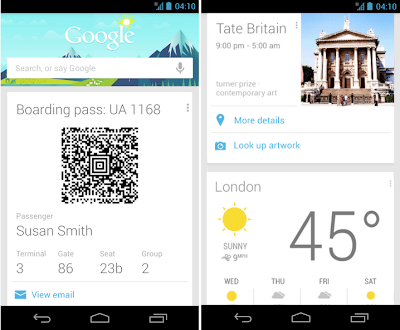


All of this builds on top of some of the other cards designed for travel, like the currency conversion, translation, and flight status cards -- hopefully taking a little bit of the stress out of holiday travel so you can focus on family and fun.

We're also making Voice Search even more powerful: you can find out the name of the song that’s playing (“What’s this song?”), quickly find product info (“Scan this barcode”) and post updates to Google+ simply by using just your voice.
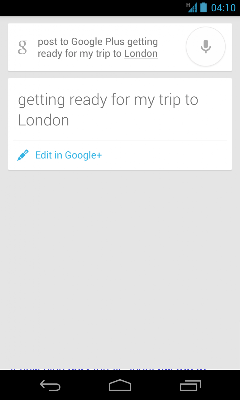


These goodies are waiting for you in the updated Google Search app, available on Google Play for devices running Android 4.1, Jelly Bean, or higher.

Posted by Baris Gultekin, Product Management Director

Baca Selengkapnya ....

How to Move Almost Any Android App to the SD Card (No Root Required)

Posted by Unknown Selasa, 04 Desember 2012 0 komentar
If you have been an android user for a time, you should know that Android apps install to the internal storage by default, But when internal phone memory gets full, you will at least face two problems such as can’t install app anymore and phone starts working slowly, so you need to clean up some storage space on your Android phone after install a lot of apps, like game apps, music apps, and video apps, etc.

So what should a user do when your mobile phone is running out of internal storage? Of course move apps to SD card or install Android Apps to the SD Card by Default are the best option if you don’t want to uninstall your favorite apps.


Install Android Apps to the SD Card by Default

This tweak requires Android 2.2 or later. To change the default install location, you’ll need to use the ADB, or Android Debug Bridge, utility included with Google’s Android SDK.

Step 1. Enable USB Debugging
First, you’ll need to enable USB debugging on your Android device. Open the Settings screen, tap Applications, and select Development.

Tap the USB Debugging checkbox to enable it. This will enable debug mode, allowing you to change the settings on your Android device from your computer. You may want to disable debug mode after completing this process.

Step 2. Install the Android SDK
You’ll need to download and install Google’s Android SDK on your computer. If you don’t already have Oracle’s Java JDK installed on your computer, you’ll have to download and install it before installing the Android SDK.

After you’ve installed both the JDK and Android SDK, launch the SDK Manager from your Start menu.

The ADB utility isn’t installed by default. It’s included in the Android SDK Platform-tools package – select this package and click the Install button to download and install it.


After the process completes, connect your Android device to your computer with its included USB cable. Windows should locate the device and install the appropriate drivers automatically. If it doesn’t, you may have to download and install the appropriate drivers from your Android device’s manufacturer. Do not mount the device after connecting it – just plug it in.

Step 3. Using ADB
Open a Windows Explorer window and navigate to the android-sdk\platform-tools folder. On Windows, you’ll find this folder at C:\Program Files (x86)\Android\android-sdk\platform-tools by default. Check C:\Program Files\Android\android-sdk\platform-tools if you’re using a 32-bit version of Windows.


Launch a Command Prompt window in this folder by pressing and holding the Shift button, right-clicking in the folder, and selecting Open command window here.


Run the adb devices command and you should see your connected Android device.


Run the following command to set the default install location to your SD card:
adb shell pm setInstallLocation 2


Note: If you want to revert this change later and install apps to the internal storage by default, run this command:

adb shell pm setInstallLocation 0

0 represents your device’s internal storage, and is the default. 2 represents the external storage, whether it’s an SD card or USB storage.

Use App 2 SD (move app to SD) to move app to SD Card


With this tool, you can export the app list to SD card, and the app will notify you when an app can be moved. Also With this handy app, you'll have more control over your ever expanding collection of apps. This app is crucial to anyone who has memory management issues

Moving Apps to SD Card
To move an app to the SD card, open the Settings screen, tap Applications, and select Manage Applications. Select the app you want to move and tap the Move button on its details screen.


Baca Selengkapnya ....

Nokia Lumia 920 vs Apple iPhone 5: the Lumia 920 win in stabilization shootout

Posted by Unknown Senin, 03 Desember 2012 0 komentar
Several days ago, a job ad posted by Nokia on employment network LinkedIn sees the company looking to hire a senior engineer to work on new mobile devices and software, people naturally think Nokia is consider to shift toward Google's Android operating system, which have a dominate share in the smartphone market. But according to a recent twitter from Doug Dawson, who heads up the company's media relations, he says Nokia will not shifting toward Google's Android operating system, and the job ad is only for HERE Maps support for other platforms, including iOS and Android. In order to found its way to get a successful comeback in the smartphone market, Nokia’s new Here Maps for iPhone and iPad launched in the App Store on Nov 19,2012, as Apple also release its own Maps after the iPhone 5.
Now let’s come back to Nokia’s new camera smartphone, once mentioned Nokia’s Flagship Windows 8 phone, we will think of its Lumia 920, which have an unparalleled Camera with PureView Technology. On October 28, 2012, I have compared the Lumia with iPhone 5 in aspect of price and top specs, etc. Today, I will update the comparison on the camera between Nokia Lumia 920 and Apple iPhone 5.

As all we know, Nokia made a pretty big deal of the stabilization feature of its Lumia 920 smartphone, which captures an impressively smooth clip even with exaggerated hand shake. The handset comes with the Floating lens technology, which is real optical image stabilization, as opposed to the digital solution of its competitors.
Lumia 920 vs iPhone 5 camera
Update: We saw there’s some confusion so we felt we should clear this out. The two smartphone were attached to a stand, rather than being held in two hands as that puts them on equal footing. The test itself starts with some casual panning, which is followed by walking in place and jumping.
Naturally, we were very curious to find out how big a difference the new technology makes, and tech website gsmarena decided to pin the Nokia Lumia 920 against the Apple iPhone 5 (which has the most efficient digital video stabilization we have seen so far). The result show as below:

The results were somewhat surprising –You can see for yourselves in the video below. Don’t forget to go fullscreen and select the 1080p option.


Above the video, the difference isn’t really major at first glance – each of the two super phones has its moments of superiority in the video. You’d probably find a difficult to tell which one uses optical stabilization and which one is simply employing a cleverly designed software algorithm, If we hadn’t named the two halves, don’t you? However, for its stabilization to work so well, the iPhone 5 is forced to use only the central part of its sensor, while the Lumia 920 can use the whole thing, which gives it both a wider viewing angle and the option to do pixel binning, which helps fight digital noise.

So the Nokia Lumia 920 takes this round, even if the margin of its victory is smaller than we anticipated.

Of course, this is just one scenario and the optical image stabilization might turn out to be more beneficial on other occasions. Website gsmarena will do some more tests before the review is complete so we’ll know how good Floating lens actually is.

For personally, I like the Lumia 920 very much and prepared to buy one as Christmas Gift. So what is your opinion? I am very curious to know your thoughts about this. Welcome to leave your opinion if you are fond of this article.

Baca Selengkapnya ....

6 simple tips to fix damaged smartphone you must know

Posted by Unknown Minggu, 02 Desember 2012 0 komentar
Being a long period of time, smartphones have been an essential part of our daily life, whether on working, or stay at home on weekends, we use the smartphones to contact with others, listen to our favorite music or watch the most enjoyable videos and so on. We can even say that, for most of us, taking a smartphone is no different than carrying our wallet. But like most electronic devices, something or the other can go wrong with the best of them even if you take care of them even you take care of them seriously. So when that happened, what should we do?

smartphones

When parts of our smartphones go wrong, we will immediately think of taking them to a service center. But many problems are either not covered in the warranty, or a heavy bill and inconvenience awaits the user. In fact, most of the time, the condition of your favorite gadget may actually not be as bad as it seems and you can easily fix the problem yourself by following some simple steps, and here are some tips.

What you do if you’re Phone gets wet?
If your phone gets wet accidentally, remove your phone's battery immediately and then use a towel to dry the physical parts of the smartphone and once finish it, bury your phone and the battery in a bowl full of rice. The rice will absorb all the water and moisture from the device. You should never try to switch the phone on as it may cause short-circuiting in the phone and may lead to a bigger loss for you.

One of the best things you can do is to place the wet smartphone on the back of your PC monitor or TV screen over the heat vents. The conventional heat waves coming out of these devices are perfect to dry and fix your phone. Else, you can place the smartphone in front of the air conditioner as well. Since the cold air coming from the AC is dry, it will dry up your phone quicker than you may expect.

To be on the safer side you can later use a hair dryer to remove the remaining moisture and water from the phone, however, never use a dryer as the first solution. This will worsen the situation by blowing the water droplets into deeper areas of your phone.

Scratches on the screen
The scratches that will appear on screen sooner if you using your smartphone without a screen guard.

But don’t be afraid, toothpaste can help you fix those scratches and make you phone's screen as shiny as your teeth. Just put toothpaste on the screen and gently rub it in circular motion with a soft cloth or cotton and then wipe the whole thing with a soft and slightly damp cloth.

Note: Make sure it is a toothpaste and not a tooth gel.

Stuck pixels
Stuck pixels are the dead pixels that appear on the smartphone screen as a stationary black dot or a bright white or red spot. You can try removing them by gently massaging the area around the stuck pixel with a soft cloth. By this method, you are allowing the pixel to reorient itself and regain color.

Phone shuts-off randomly
If your phone shut off randomly for times, it shows that you have dropped your phone a good number of times or the battery is loose. When this happened, all that you have to do is to take a small bit of paper and fold it. Then open the back cover of your phone and insert the folded bit of paper between the edge of the battery and the edge of the phone, on the opposite side where the terminals of the battery are located. This will keep the battery firmly in place and stop your phone from shutting down.

How to extend battery life?
Have you encountered this problem, recently you bought a new phone battery but it is losing charge within weeks? When face this problem, you can try keeping it in the refrigerator.

Keeping them in cold environment not only extends their life but also increases their power. But make sure that the batteries are wrapped in a poly bag or a zip lock bag while they are inside the refrigerator.

You can also try to solve the problem by turning off screen's auto-rotate function, Bluetooth, reducing the screen brightness and GPS. If you are not really bothered about using the Wi-Fi and have an internet pack activated, you can switch off the Wi-Fi as well. However, if the problem still persists, it is likely a software issue and you must take your phone to a technician.

Fixing crashed Android apps
An Android app can crash within minutes of downloading and can cause your phone to hang. Reasons can be many but you can fix it by following these steps. Pull the battery slowly from the phone. This step is called soft reset and doesn't affect data in your phone, but can help you resolve issues such as a crashed app.
Once your phone restarts, you can go to Google Play > My Apps and then click on the app to update it. If an update is not available then simply uninstall the app and then reinstall it.

If you really enjoyed this article, welcome to share your views and suggestion via comments.

Baca Selengkapnya ....

Which would you choose, Samsung Galaxy Note 2 or the Google Nexus 4?

Posted by Unknown Kamis, 29 November 2012 0 komentar
Samsung Galaxy Note 2, the smartphone-tablet hybrid from Samsung Group, which was launched in September, is said reached the impressive 5 million sales in 2 months, The Korean technology giant said in a statement (Google Translate) on November 26. Although the Note 2's sales are far behind that sells of the Galaxy S3, which Samsung sold 20 million of its flagship smartphone in the first 100 days after its launch, but it indicate that the high-end smartphone with top-of-the-line features is in great demand. Can it outsell the LG Nexus 4 which offers better operating system, price tag and often sold out in a short time?

Samsung Galaxy Note 2 vs Nexus 4

Today, we take a look at the Nexus 4 versus the Samsung Galaxy Note 2 in terms of features, price and more to help you decide which one to buy.


Addition: One of the unique features of the Samsung Galaxy Note 2 is the device’s S-Pen, a stylus that benefits from some unique software that Samsung has included on the Galaxy Note 2. With the new S-Pen, Some of those applications include Air View which allows users to hover over things like e-mail, calendar or an image to get a preview of the content before actually having to open it, a feature called Easy Clip which lets users crop content on screen including images to save for later use, and finally, the ability to use the S-Pen to draw out Quick Commands for tasks like email. So you will feel so convenient to use the phone even it has a large screen.

So which phone do you like more?


Baca Selengkapnya ....

Best 5 Christmas Apps for Android for Christmas 2012

Posted by Unknown Rabu, 28 November 2012 0 komentar
Several days ago, I have introduced Best 5 Christmas Live Wallpaper Apps for Android, and today I will continue to introduce best 5 Christmas Apps for Android in 2012 special for you. If you're looking for some simple, fun apps of Christmas this holiday season, you've come to the right place. These list apps will put you in the Christmas spirit and give you a few ideas for activities, gifts for your demand.
These 5 Best Christmas Free Apps for Android in 2012 cover everything from holiday music to greeting cards, like Apps of RingTones, Santa, Wallpaper, Countdown and others.

Christmas Live Wallpaper Lite
As the winter night of Christmas Eve is approaching us with every passing moment, what is better than having a live wallpaper installed on your phone that continuously reminds you of the time left for the Christmas.

This 3D Christmas Live Wallpaper has a Christmas Scene with a Christmas Countdown in a snowfall of lights. You can see a Christmas tree with lights and an awesome flashing lights program (only in full)!

Christmas Ringtones
Christmas Ringtones
This app features 45 high qualities and popular Christmas ringtones  and sounds.
With this App, you can customize your phone with Christmas spirit and enjoy the Merry Christmas Season on your phone by:
  • set the ringtone to a specific contact
  • set your default ringtone
  • set your alarm sound
  • set your notification (text and email) sound
3D Christmas Live Wallpaper Free
"3D Christmas Live Wallpaper Free" is a stunning 3D live wallpaper featuring a sparkling Christmas Tree of Light, plus an exciting Countdown to Christmas and the New Year. Both scenes in the free version can be enjoyed as a live wallpaper background, or as a fully interactive foreground app where you can look around freely, and quickly customise your settings.

Talking Santa Free
Talking Santa Free
Talking Santa is packed with countless hours of holiday fun for the entire family! Speak into your microphone and listen to Santa repeat your special holiday message aloud.

Swipe, poke, or tickle Talking Santa to your hearts content or tap on his famous red Christmas sack to reveal if Talking Santa’s got you on his naughty or nice list!

Be nice to Santa by offering up some milk & cookies, or be naughty by slapping Santa or sending a giant snowball his way!
PLEASE NOTE: When running the app for the first time you will be required to download additional 4-26 MB to get the best graphics quality for your device.

Christmas Pho.to Frames
Creating holiday e-cards with ‘Christmas Pho.to Frames’ is as simple as ABC:

  1. Choose a template from the huge collection
  2. Select photo(s) from your Gallery or Camera
  3. Add a text of your own and share the result!

It is not a new app, but find out that is still consider as a good apps if you are using to customize some photo for Christmas effect. Try it ~

More Apps will update here once I find more better Christmas App. Hope you get a little extra Christmas joy from these apps.

Baca Selengkapnya ....

Edit spreadsheets on the go with the Drive mobile app

Posted by Unknown 0 komentar
You’re making your list, you’re checking it twice -- and now you can do it from anywhere.

Just in time for this year’s holiday season, you can edit Google Sheets on your mobile device, just like you can with Google Docs. From the Drive app on your Android device, you can create a new spreadsheet or edit an existing one. You can switch fonts, resize columns, sort data, and more. And just like on your computer, you’ll be able to see other people’s edits in real time as they’re made.


Beyond spreadsheets, you may notice a few other tweaks to the Drive app, including better text formatting when you paste from one Google document to another. And from your Android device, you can edit text within tables in documents and add a shortcut on the homescreen of your device to any specific file in Drive.

Whether it’s holiday recipes, shopping lists, or just your family budget, the Drive app on your mobile device makes it easy to get stuff done wherever you are.

Get the Google Drive app today on Google Play.

Posted by Shrikant Shanbhag, Software Engineer

Baca Selengkapnya ....
Trik SEO Terbaru support Online Shop Baju Wanita - Original design by Bamz | Copyright of android mwb.